Blog · Gear & supplies
Best Cricut for making stickers in 2026
This guide compares six Cricut models that can make full-color stickers: Joy 2, Joy Xtra, Explore 5, Maker 4, Maker 5, and Venture. What changes is how much printable paper they handle, how quickly they work, and which tools and materials they support. Here is the honest 2026 breakdown, including the one we would tell a friend to buy.
Affiliate disclosure: As an Amazon Associate, I earn from qualifying purchases.
Short answer: choose the Cricut Explore 5 for the straightforward full-size sticker workflow. Pick the Joy Xtra when desk space matters, or the Maker 5 when you also want its broader specialty-tool and material capability. Joy 2 can make printed stickers now, but it splits a full printable project across two narrow mat loads.
- The one feature that matters
- The lineup at a glance
- Cricut Explore 5: the pick for most people
- Cricut Joy Xtra: the compact pick
- Cricut Maker 4 and Maker 5: when stickers are not the whole story
- Explore 5 vs Maker 4 and Maker 5 head to head
- The niche picks
- What about the Silhouette Cameo?
- What it really costs to get started
- Frequently asked questions
The one feature that matters: Print Then Cut
A Cricut is a cutting machine. It does not print, so a full-color sticker sheet always starts on your inkjet printer. The Cricut's job is to read registration marks on the printed page and cut precisely around every sticker. That workflow is called Print Then Cut, and it is the entire reason a sticker maker buys a Cricut.
So the buying decision is simpler than the product lineup makes it look. Any machine without Print Then Cut is off the list, no matter the price. Any machine with it will make great stickers, and the differences that remain are cutting area, speed, and what else the machine can do.
If you want the full workflow before you commit to a machine, read how to make stickers with a Cricut first. You can even do a dry run today: design a sheet in the free Print Then Cut tool, print it at home, and cut it with scissors to see if you enjoy the craft before spending anything.
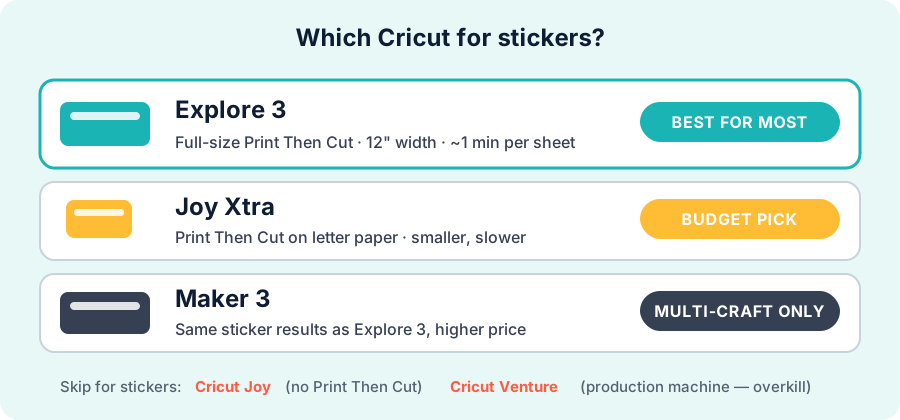
The lineup at a glance
| Machine | Print Then Cut | Machine cut width | Verdict for stickers |
|---|---|---|---|
| Cricut Joy 2 | Yes | 4.5" | Narrow-mat option; a full printable project is split across two mats. |
| Cricut Joy Xtra | Yes | 8.5" mat | Best compact full-sheet pick. Handles Letter Print Then Cut in one mat load. |
| Cricut Explore 5 | Yes | 11.5" mat / 12" Smart | Best for most sticker makers. |
| Cricut Maker 4 | Yes | 11.5" mat / 12" Smart | Full-size sticker workflow plus specialty crafts. |
| Cricut Maker 5 | Yes | 11.5" mat / 12" Smart | Full-size sticker workflow plus the current Maker tool and material range. |
| Cricut Venture | Yes | 24" | Overkill for a home inkjet workflow. |
Cricut Explore 5: the pick for most people
The Explore 5 is the straightforward full-size choice. It handles Print Then Cut on Letter and Legal paper, works with 100-plus materials, and gives sticker makers the same Letter-paper cuttable limits as the Maker family. See Cricut's current machine comparison for the manufacturer's lineup and capabilities.
What you give up versus the Maker 4: rotary and knife blades plus engraving, debossing, perforation, and other specialty operations. None of those improves a sticker-paper cut.
What you gain versus the Joy Xtra: Legal-paper Print Then Cut support, a wider full-size cutting path, faster maximum cut speed, and more tool and material options. If you sell stickers or branch into other crafts, that headroom matters.
Buy this one if you want a machine that makes sticker sheets without compromise and you do not have a specific reason to pick something else.
Cricut Joy Xtra: the compact pick
The Joy Xtra is the compact current Cricut that accepts a complete Letter sheet for Print Then Cut in one mat load. It is smaller, lighter, and easy to store between projects.
On Letter paper, Design Space gives Joy Xtra the same maximum Print Then Cut dimensions as Explore and Maker machines. The trade-offs are slower cutting, no Legal-paper Print Then Cut, and fewer compatible tools and materials. For planner stickers, occasional batches, or a small workspace, it is a sensible buy. The Joy Xtra sticker tutorial walks through the exact workflow.
Because Explore 5 is only one step up in the lineup, regular sellers should compare current prices before choosing compactness over speed and versatility.
Cricut Maker 4 and Maker 5: when stickers are not the whole story
For stickers, the Maker 4 and current Maker 5 use the same full-size Print Then Cut workflow as Explore 5. Maker 5 is Cricut's current 12-inch Maker model, with 300-plus materials and 13 compatible tools; Maker 4 remains a capable full-size option for broader craft work.
These machines make sense when your craft table also includes fabric, wood, leather, engraving, debossing, perforation, or other specialty operations. For sticker sheets alone, the extra tools do not change the Print Then Cut workflow.
Explore 5 vs Maker 4 and Maker 5 head to head
This is the matchup most buyers agonize over, so here it is straight. Everything a sticker maker touches is identical across these three machines:
| Feature | Explore 5 | Maker 4 | Maker 5 |
|---|---|---|---|
| Print Then Cut | Yes, full size | Yes, full size | Yes, full size |
| Letter Print Then Cut maxima* | 9.94" vertical / 7.44" horizontal | 9.94" vertical / 7.44" horizontal | 9.94" vertical / 7.44" horizontal |
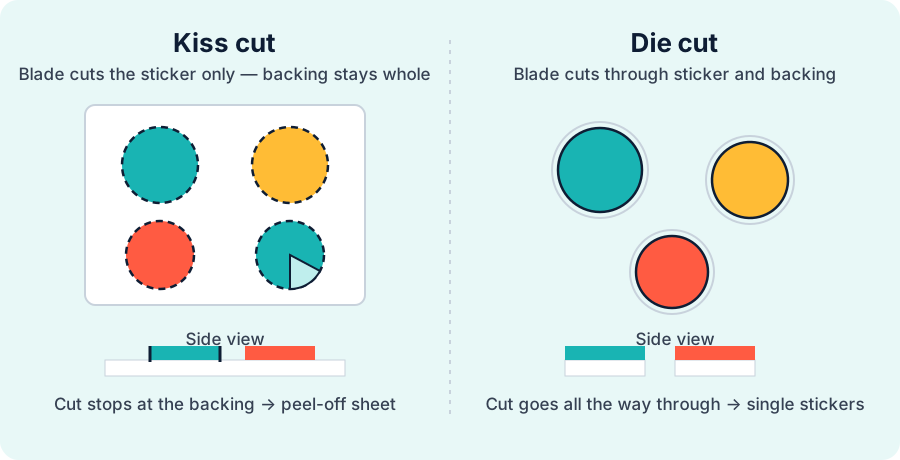
| Kiss cut and die cut sticker sheets | Yes | Yes | Yes |
| Maximum machine cut width | 11.5" mat / 12" Smart | 11.5" mat / 12" Smart | 11.5" mat / 12" Smart |
| Smart Materials (matless cutting) | Yes | Yes | Yes |
| Compatible materials | 100+ | 300+ | 300+ |
| Rotary, knife, engraving, and debossing tools | No | Yes | Yes |
*These are separate maximum vertical and horizontal figures. The sensor-mark boundary is not a full rectangle, so the usable combination depends on your artwork's proportions. See Cricut's current Print Then Cut size table for page-specific limits.
The verdict is simple: the price gap buys specialty-material capability, not better stickers. Sticker-focused buyers should choose Explore 5 and spend the savings on paper, ink, and laminate.
Test the workflow before you buy: lay out a sticker sheet in the free tool, print it, and cut it by hand.
The niche picks
Cricut Joy 2: unlike the original Joy, the current Joy 2 supports Print Then Cut. Its 4.5-inch path cannot accept a full printable sheet, so Design Space divides the job across two trimmed sheets and two mat loads. It is the narrowest option, but Joy Xtra is simpler for regular full-sheet sticker work.
Cricut Venture: it supports Print Then Cut, but it is a 24 inch wide production machine at a professional price. A home inkjet cannot produce media that takes advantage of that width, so it solves a problem most sticker makers do not have.
Older secondhand models: an Explore Air 2 from a garage sale can be a fine deal, and it does Print Then Cut. Just know that older machines are slower, some max out at smaller Print Then Cut dimensions, and Cricut's software attention goes to the current lineup.
What about the Silhouette Cameo?
The Silhouette Cameo is the other serious sticker machine, and it deserves an honest paragraph instead of a dismissal. Its Print Then Cut equivalent (Silhouette calls it Print and Cut) works the same way: print with registration marks, machine reads them, machine cuts. Where the two differ:
- Software: Silhouette Studio is a full desktop app that runs offline and gives finer control over cut lines. Cricut Design Space is simpler, cloud-connected, and easier for a first-timer to learn.
- Community: Cricut has far more tutorials, YouTube walkthroughs, and troubleshooting threads. When something goes wrong at 11pm, that matters.
- Results: on sticker paper, finished sheets from either machine look the same.
Tinkerers who like desktop software tend to prefer the Cameo. Beginners who want the shortest path to a finished sheet tend to prefer the Cricut. Either way, the sheets you design in the free Print Then Cut tool work with both, since each machine traces its cut line from the same transparent PNG.
What it really costs to get started
The machine is the headline number, but a realistic starter budget has four lines:
- The machine, usually bundled with a mat and a basic blade.
- An inkjet printer, if you do not own one. Any recent home inkjet is fine to start. Laser printers are the wrong tool here because their heat curls most sticker stock.
- Sticker paper. Start with matte full-sheet inkjet sticker paper, which is cheap and forgiving. Compare stocks in the sticker paper guide.
- Optional water resistance: printable vinyl plus clear laminate sheets for anything that meets water. Method and honest durability numbers are in how to waterproof stickers.
What you do not need: Cricut Access. The subscription sells Cricut's clipart and fonts. Bring your own artwork, or build sheets in the free sticker maker, and Design Space plus Print Then Cut cost nothing beyond the machine.
Frequently asked questions
Is the Cricut Explore 5, Maker 4, or Maker 5 better for stickers?
For stickers specifically, Explore 5, Maker 4, and Maker 5 all support full-size Print Then Cut. Explore 5 covers the common sticker workflow; Maker 4 and Maker 5 add broader tool and material capability. Maker 5 is the current 12-inch Maker model and supports 300-plus materials and 13 tools.
Can the Cricut Joy make stickers?
Yes. The current Joy 2 and Joy Xtra both support Print Then Cut. Joy 2 splits a printable project across two narrow mat loads; Joy Xtra accepts Letter paper in one load. The discontinued original Joy does not support Print Then Cut.
Is a Cricut worth it for making stickers?
It depends on volume. If you make stickers occasionally, printing at home and cutting by hand works fine. A Cricut earns its price when you make sheets regularly or sell them, because it cuts a whole kiss-cut sheet in about a minute with clean edges every time.
Do I need Cricut Access to make stickers?
No. Access is a subscription for Cricut's image and font library. If you bring your own artwork or lay out sheets in a free tool, Design Space and Print Then Cut work without any subscription.
What else do I need besides the Cricut to make stickers?
An inkjet printer, sticker paper, and a standard grip cutting mat. Optional extras are printable vinyl and clear laminate for water resistance. The Cricut only cuts; your printer supplies the color.
What is the maximum Print Then Cut size on a Cricut?
On Letter paper, Design Space lists a maximum vertical dimension of 9.94 inches and a maximum horizontal dimension of 7.44 inches for Joy Xtra, Explore, and Maker machines. The boundary is not a full rectangle, so the usable combination depends on the proportions of your design. Explore and Maker machines also support Legal paper. Check Cricut's current size table for the selected machine and page.
Can a Cricut cut glossy sticker paper?
Cricut does not support reflective glossy, metallic, glitter, or holographic Print Then Cut materials because glare can confuse the sensor. Matte stock is the reliable choice. If you laminate, keep the sensor marks uncovered and test one sheet before a full run.
Is a Cricut or Silhouette Cameo better for stickers?
Both produce the same quality sheets. The Cameo has a more powerful offline desktop app; the Cricut is easier for beginners and has a much larger tutorial ecosystem. Most first-time sticker makers find Explore 5 the shorter path to a finished sheet.
- Cricut Explore 5 - the best value for sticker sheets
- Cricut Joy Xtra - Letter Print Then Cut in a compact footprint
- Cricut Maker 4 - for stickers plus specialty materials and tools
- Cricut Maker 5 - current Maker model with 300+ materials and 13 tools
- Matte sticker paper - forgiving inkjet starter stock
- Clear laminate sheets - water resistance; use a matte/non-reflective finish and test sensor scanning first
What to read next
Picked your machine? The step-by-step workflow is in how to make stickers with a Cricut. Design your first sheet in the free Print Then Cut tool, and choose your stock with the best sticker paper guide.