Artwork to printable PDF
How to Make a Printable Sticker Sheet From PNG or JPG Images
Already have your sticker artwork? Upload your PNG or JPG images, choose the sticker size, and download a printable PDF. You can repeat one design across the sheet or arrange several different designs together. MakeMyStickers works in your browser, with no account or software installation.
You only need your image files and a browser to make the PDF. When you are ready to print, use sticker paper that matches your printer and keep a sheet of plain paper handy for a test.
1. Upload your PNG or JPG artwork
Open the free sticker sheet maker and choose Guided at the top of the controls if it is not already selected. The four numbered cards take you from your files to the finished PDF.
In 1 · Add your design, choose Images. Click the upload box and select your file, or drag it into the box.
- One design for a whole sheet: add that image once. You will turn on repetition in step 3; there is no need to upload copies.
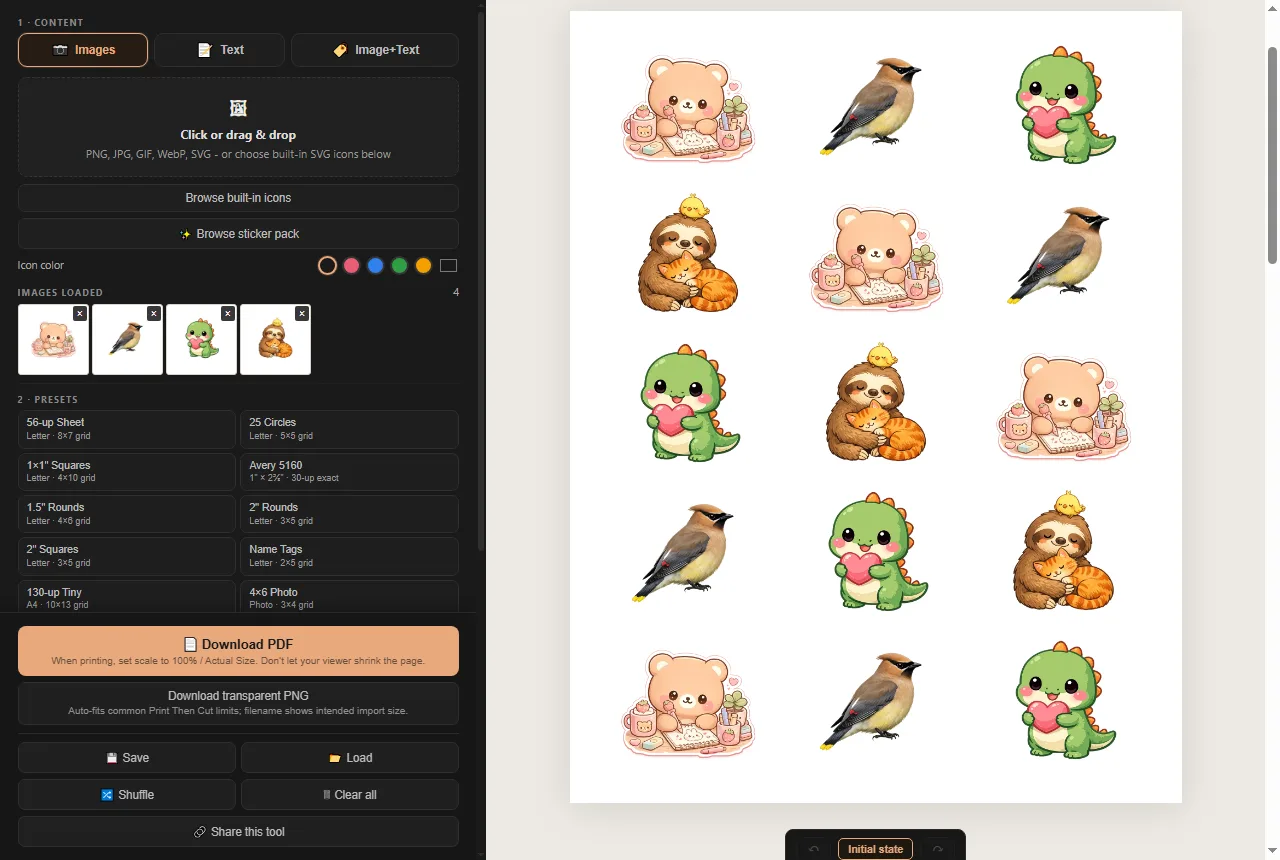
- Different designs on the same sheet: select several files together in the file picker, or drag them into the upload box together. The loaded images appear as thumbnails.
- An image on your clipboard: paste it with Ctrl+V on Windows or Command+V on a Mac while you are in the tool.
PNG and JPG both work. Use a PNG with transparency if you want the paper to show around your artwork; use JPG for photos or artwork whose background you want to keep. WebP and SVG files are also supported.
Use a separate image file for each design you want the tool to arrange. A picture of an already assembled sticker sheet is treated as one image; it is not automatically split into individual stickers.
2. Choose your paper and sticker dimensions
Open 2 · Choose the sticker. Start with What are you printing on?
Full-sheet sticker paper you will cut yourself
Choose Plain sticker paper, then select a shape and a Finished size. Choose your actual sheet size under Paper: for example, US Letter (8.5 × 11 inches) or A4 (210 × 297 mm). The size list shows how many stickers fit on the selected paper.
The finished size is a physical measurement, not a pixel count. A 2-inch sticker is 50.8 mm across. Check the size shown beside the preview before downloading. Changing the paper or sticker size rearranges the images you have already loaded.
Precut Avery label sheets
Choose Avery labels and select the product number printed on your package. The tool uses that product's label dimensions and positions. Choose by product number rather than by appearance: two sheets can look similar and have different spacing. Use the Avery label sizes chart if you need help identifying a layout.
A layout outside the Guided size list
Switch to Full controls for presets and the Grid layout controls: columns, rows, gap, and margin. Adjust the grid and check the resulting dimensions beside the preview. Exact Avery layouts keep their geometry locked to the product.
Sticker size and visible artwork size can differ. The dimensions describe the space for each sticker. Transparent or white padding inside the image counts as part of that image, so the drawing itself can look smaller. The next step lets you control how it fits.
3. Repeat one image or arrange multiple designs
Open 3 · Review the sheet. Use Fill pattern to choose how your images occupy the sheet.
Repeat the same image across the whole sheet
With only that image loaded, select Repeat to fill sheet. The tool fills the available spaces with copies. If several designs are loaded, this setting repeats all of them in order; it does not select just one design for you.
Make a sheet with several different designs
Choose Use each once in order to place each loaded image once. Unused spaces stay empty. If your images exceed the sheet's capacity, the PDF includes additional pages so each design can be printed.
Choose Repeat to fill sheet to cycle through your designs until one sheet is full. For example, four images repeat as 1, 2, 3, 4, 1, 2, 3, 4. If you have more designs than spaces on one sheet, use Use each once in order to include them all in the PDF.
Fit your artwork and check the edges
- Fit entire image: keeps the whole image visible inside the sticker. Space remains if the image and sticker have different proportions.
- Crop to fill: fills the sticker area and trims artwork at the edges. Check that it has not cut off lettering, faces, or other details.
- Cut guides: adds printed guides for cutting by hand. Leave them off for precut labels unless you intentionally want the lines printed.
All stickers use the selected sheet layout; different images do not get different physical sticker sizes on the same sheet. Click a sticker in the preview if you need to swap, edit, or blank that individual position.
4. Download your printable PDF
Open 4 · Download and choose Download PDF. Open the file and check the artwork, page count, and arrangement before printing.
Print at 100% or Actual Size. Match the printer's paper size to the PDF, and turn off options such as Fit to page or Shrink oversized pages that would change the sticker dimensions.
Print one test on plain paper first. Measure a sticker position; for precut sheets, hold the test behind the label sheet against a light to check alignment. If it is wrong, check the paper size, scaling, and selected label product before using sticker paper.
For printer settings and alignment troubleshooting, follow how to print stickers at home. For scissors, punches, and hand-cutting techniques, see how to make stickers without a Cricut.
Questions about making a sticker sheet from images
Can I put different images on one sticker sheet?
Yes. Add several PNG or JPG files in the Images tab. In Review the sheet, choose Use each once in order to place each design once, or Repeat to fill sheet to cycle through the loaded designs. If there are more designs than spaces, Use each once in order includes the remaining designs on additional PDF pages.
How do I repeat the same image across the sheet?
Load only the image you want to repeat. In Review the sheet, set Fill pattern to Repeat to fill sheet. With several images loaded, that setting repeats the whole set of images rather than picking just one.
Why does my artwork look smaller than the sticker size?
The dimensions describe the space for each sticker, including any padding inside your image file. Fit entire image also leaves space when the image and sticker have different proportions. Crop unwanted empty edges in the image editor, or choose Crop to fill if you can safely trim part of the artwork.
Why does my image look blurry?
Small source images lose detail when enlarged. Use the original, higher-resolution artwork or choose a smaller sticker size. Downloading a PDF cannot restore detail missing from the source image. Check the PDF and make a plain-paper test before using sticker paper.
Do I need a transparent PNG?
No. JPG images work too, and keep the background already in the file. A transparent PNG is useful when you want the paper to show around the artwork. Transparency does not create a custom cut line or cut the sticker for you.
Save your layout and add optional extras
To keep an editable copy, open the Download card, expand More options, and choose Save. It downloads a layout file; Load brings that project back later. Keep your PDF too if you simply want to reprint the finished sheet.
For words instead of artwork, use the Text tab and enter one label per line. Choose Image+Text for a picture with a caption. The sticker maker also works in a phone or tablet browser; printing is usually easier from a computer connected to your printer.
Your uploaded artwork is processed in your browser. See the privacy policy for details about local storage and optional features.